Terminal Quickstart
Lavender Terminal is a Windows desktop app for options traders — install it, sign in, and you're looking at a live, fully priced option chain on Lavender's paper book in seconds.
Looking for the REST API?
This page is for the desktop Terminal. For the Gateway REST API on your own machine, see the Gateway Quickstart.
Prerequisites
- OS: Windows 10 or later
- Subscription: a Lavender Terminal subscription or an active 7-day free trial — $390/seat/month, month to month, no exchange fees (credit card required). Start one at lavender-ts.com/terminal.
- Network: outbound HTTPS (for subscription validation and runtime data)
Nothing else to install
Terminal opens on Lavender's paper book out of the box — no market-data feed or broker required to start. Connect your own when you're ready.
1. Start your trial
Sign up at lavender-ts.com/terminal. Checkout runs through Stripe; the 7-day free trial is free up front (credit card required), then $390/seat/month, month to month, no exchange fees. Note the email you subscribe with — you'll enter it on first launch.
2. Download Terminal
Get the app for Windows: download.lavender-ts.com/Terminal.exe.
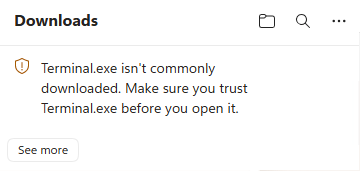
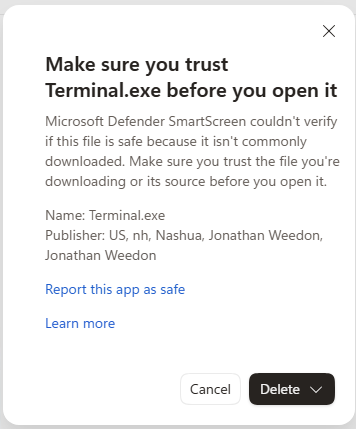
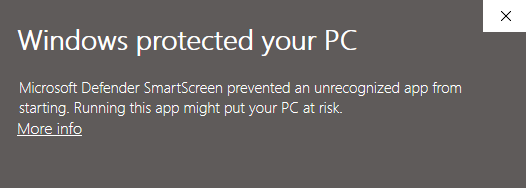
Because the app is newly published, Windows SmartScreen may flag it on first launch — this is expected for any freshly signed app and is harmless. To get past it: choose Keep if your browser warns about the download, then on launch click More info → Run anyway.
3. First launch — enter your subscription email
On first launch, Terminal asks for the email associated with your subscription. Enter the exact email you subscribed with — that's your entitlement.
Email not recognized?
Make sure you're using the exact email from your subscription confirmation. If it still isn't recognized, email support@lavender-ts.com.
4. It opens on Lavender's paper book
Terminal starts on Lavender's paper book immediately — nothing to configure. You get a live option-chain Montage, the 3D volatility surface, the chart grid, positions and risk, scenarios, and a paper-trading ticket, every number computed from Lavender's own Greeks across the full OPRA universe.
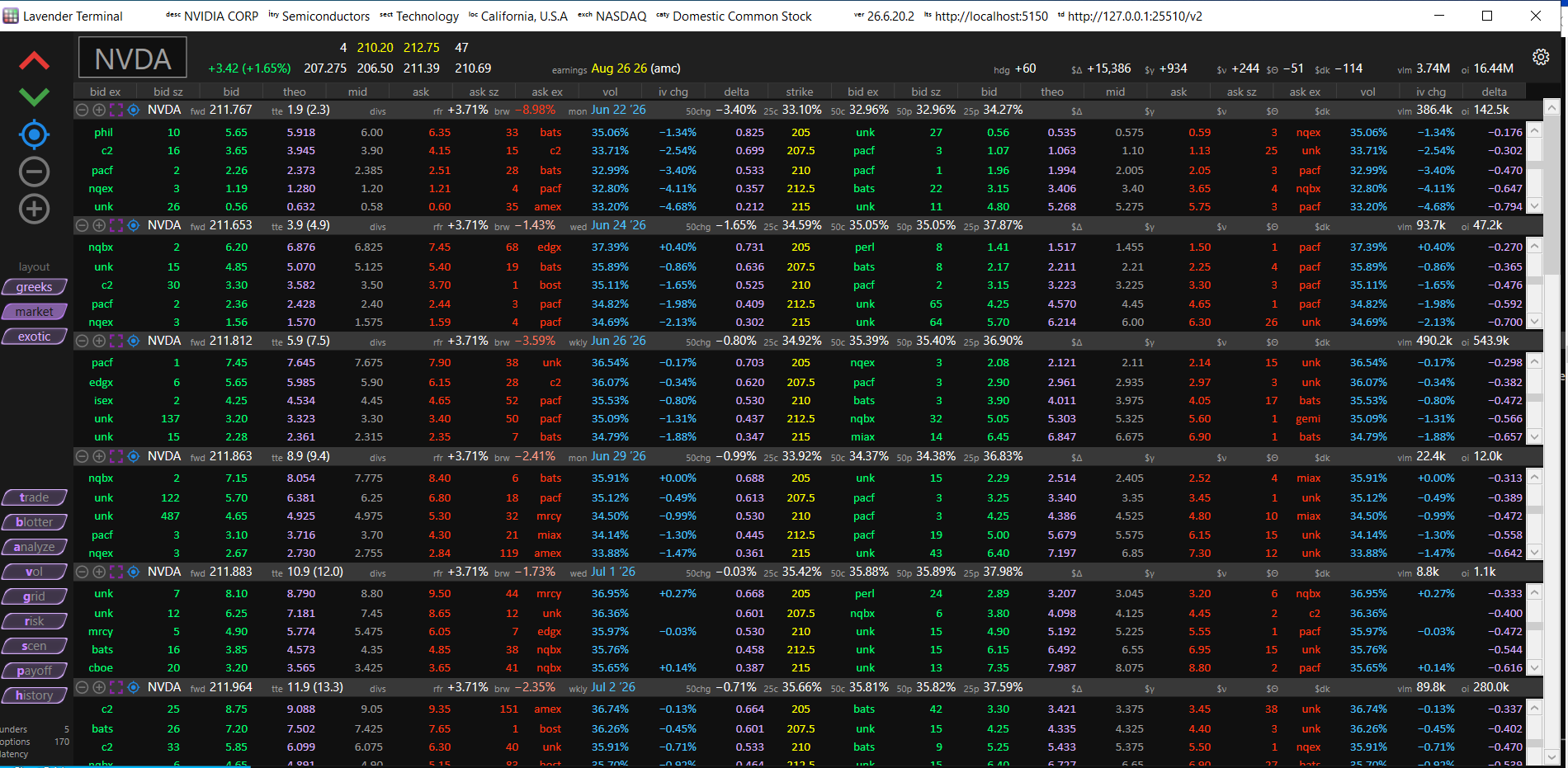
Click a contract and the whole desktop — vol charts, chart grid, risk — follows.
5. Connect your own market data and broker
When you're ready to light Terminal up with live quotes and your live positions, bring your own market-data feed and broker. Broker connections are read-only: Terminal mirrors your positions and trades and never places an order with your broker, and its own trades are paper trades on Lavender's paper book. Each connector has its own page:
Choosing feeds and brokers
Run one data feed at a time — pick the vendor in Settings → Data Feed. Connect a broker in Settings → Broker; the quick setup uses a single broker, and Terminal also supports multiple brokers at once (email support@lavender-ts.com to set that up).
Take your time
There's no rush to connect anything. Explore the full desktop on Lavender's paper book first, then add data and a broker when it suits you.
Troubleshooting
Troubleshooting
- SmartScreen blocked it — choose Keep on the download warning, then More info → Run anyway on launch. This is expected for a newly signed app.
- "Email not recognized" — use the exact email from your subscription confirmation. Still stuck? Email support@lavender-ts.com.
- Market data or broker won't connect — double-check the key or credentials on the relevant connector page, then restart Terminal.
- Still stuck? Email support@lavender-ts.com or ask in Discord.
Next steps
- Lavender Terminal overview — the Montage, vol charts, chart grid, risk, scenarios, and more
- Connect your market data — ThetaData, AlphaVantage, or DataBento
- Connect your broker — Interactive Brokers, Tastytrade, or Tradier