Gateway Quickstart
Which product is this?
This page sets up Gateway, the REST API that runs on your own machine. For the desktop Terminal app, see the Terminal Quickstart.
Prerequisites
- OS: Windows 10+, macOS 12+, or Linux (x64)
- RAM: ~1 GB
- Disk: ~100 MB
- Network: outbound HTTPS (for subscription validation and runtime data)
Where this runs
Gateway runs on your machine and listens on localhost:2112. Specific contracts, strikes, and position sizes never leave your machine -- only the underlying tickers you query (plus a handful of reference tickers like SPX/QQQ the engine always needs) are sent to the Lavender cloud. See Network requirements for the outbound host and binding details.
1. Start Gateway
- Subscribe at gateway.lavender-ts.com -- 7-day free trial available (credit card required).
- Download the Gateway binary for your OS:
Gateway.exe(Windows)Gateway(macOS)Gateway(Linux x64)
-
Run it:
Double-click
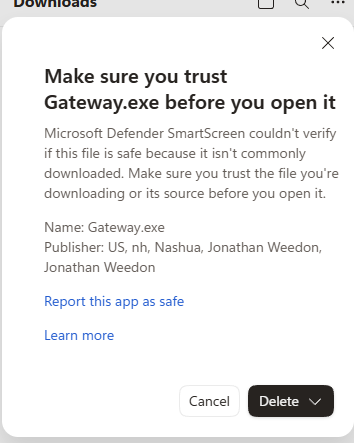
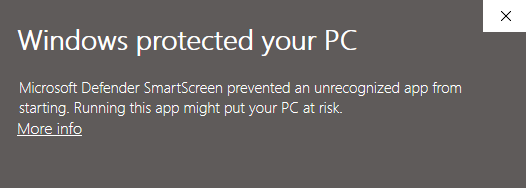
Gateway.exe. Because the app is newly published, Windows SmartScreen may flag it on first launch — this is expected for any new app and is harmless. To get past it: choose Keep if your browser warns about the download, then on launch click More info → Run anyway.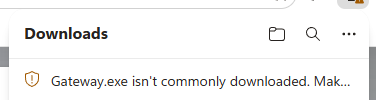
On first launch you'll be prompted for the email associated with your subscription. To skip the prompt -- e.g. for service installs or scheduled tasks -- pass it on the command line:
Open Terminal,
cdto the download folder, then runchmod +x ./Gateway && ./Gateway. If macOS reports "cannot verify the developer", runxattr -d com.apple.quarantine ./Gatewayonce and try again.On first launch you'll be prompted for the email associated with your subscription. To skip the prompt -- e.g. for service installs or scheduled tasks -- pass it on the command line:
-
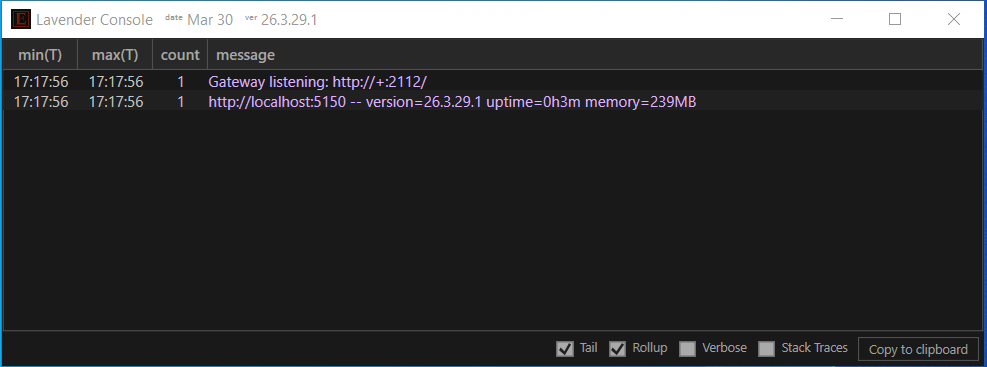
Gateway listens on
localhost:2112.
For the full set of runtime flags, console output, and the housekeeping window, see Running Gateway.
Didn't receive the download?
Contact support@lavender-ts.com or visit gateway access for next steps.
What you should see
Troubleshooting
- "Email not recognized" — verify you're using the exact email from your subscription confirmation
- Port 2112 already in use — Gateway exits with a clear
port 2112 is already in usemessage; relaunch with-port=<n>or stop the other process - No data appearing — ensure outbound HTTPS is not blocked by a firewall or VPN
- Still stuck? Contact support@lavender-ts.com or ask in Discord
2. Try It in Your Browser
Once Gateway is running, paste this into any browser:
The at-the-forward call and put for every SPY expiry, rendered as an HTML table — no API key, no code, no setup. Change the symbol or drop the center=atf filter to widen the view.
Every endpoint supports format=html
Append &format=html (or ?format=html) to any Lavender endpoint — including all vendor compatibility endpoints — and you get a rendered table in your browser. Great for quick inspection, spot-checking Greeks, or sharing a link with a colleague.
Already Using a Vendor?
If you have existing code that fetches option Greeks from one of these vendors, you can point it at Gateway by changing the host — no other code changes needed. Your existing API keys are accepted and ignored.
Paste one of these into your browser to see Greeks through your vendor's endpoint right now:
Same data, same wire format your code already expects — just rendered as a table. When you're ready to integrate, swap the host in your existing code and the JSON/CSV response works unchanged.
Starting Fresh?
If you're not migrating from a vendor, start with the Lavender native API. All endpoints support four output formats: JSON, CSV, NDJSON, and HTML.
Fetch option Greeks
using var client = new HttpClient();
var json = await client.GetStringAsync(
"http://localhost:2112/l1/greeks?root=SPY¢er=atf&format=json");
using var doc = JsonDocument.Parse(json);
foreach (var row in doc.RootElement.EnumerateArray().Take(5))
{
Console.WriteLine($"{row.GetProperty("expiry")} " +
$"{row.GetProperty("strike")} {row.GetProperty("right")}: " +
$"delta={row.GetProperty("delta")}");
}
#include <cpr/cpr.h>
#include <nlohmann/json.hpp>
using json = nlohmann::json;
auto r = cpr::Get(cpr::Url{
"http://localhost:2112/l1/greeks?root=SPY¢er=atf&format=json"});
auto data = json::parse(r.text);
for (auto& row : data | std::views::take(5))
std::cout << row["expiry"] << " " << row["strike"]
<< " delta=" << row["delta"] << "\n";
var client = HttpClient.newHttpClient();
var request = HttpRequest.newBuilder()
.uri(URI.create(
"http://localhost:2112/l1/greeks?root=SPY¢er=atf&format=json"))
.build();
var response = client.send(request, HttpResponse.BodyHandlers.ofString());
var array = new JSONArray(response.body());
for (int i = 0; i < Math.min(5, array.length()); i++) {
var row = array.getJSONObject(i);
System.out.printf("%s %.0f %s: delta=%.3f%n",
row.getString("expiry"), row.getDouble("strike"),
row.getString("right"), row.getDouble("delta"));
}
Want extended Greeks? Add greeks=all to include second and third-order Greeks (vanna, charm, volga, speed, color, and more). See the Lavender API reference for all field groups and Greek conventions for the full catalog.
Next steps
- Lavender API — native REST endpoints, field groups, term structure, filtering
- Field Reference — every L1 field, units, and the worked example
- Verify the Greeks — match Lavender to a reference Black-76 in Python, R, or Excel
- Greek conventions — sign conventions, units, and the full extended Greeks catalog